Stata Installation & License Update Instructions
Stata is a statistical software developed for data manipulation, visualization, statistical analysis, and automated reporting.
NBER employees and project contributors (e.g. RAs, fellows) are eligible to install the NBER Stata license on their NBER or personal computer. Beginning with version 17, Stata licenses expire July 2 each year and must be manually updated on each computer. The current version of Stata license we have is Stata 19. If you are unsure of whether you are eligible for this license or not, please contact it-support@nber.org.
- Submit a ticket requesting the installer and license info by emailing it-support@nber.org. A member of the NBER IT team will send the installer and license info via SendSecure.
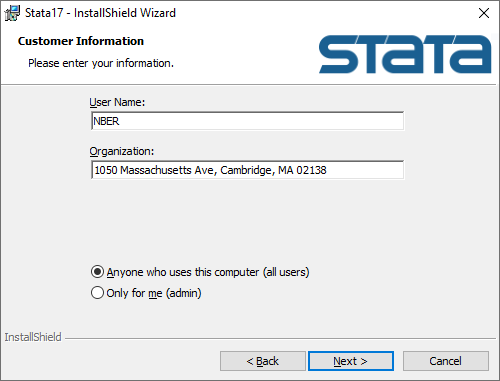
- Download and double-click on the exe file to run the installation. Once you get to the window titled “Customer Information”, type NBER for the username and 1050 Massachusetts Ave, Cambridge, MA 02138 for the organization. Leave everything else as default.
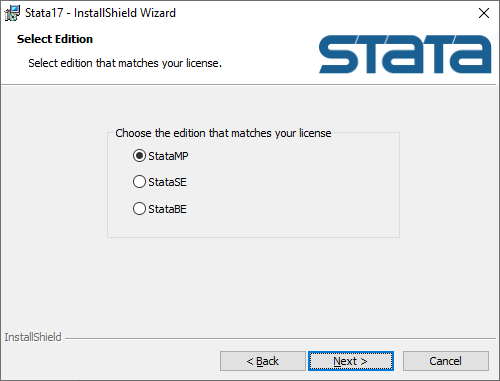
- Once you get to the “Select Edition” window, select the StataMP button. Our license is for this version of Stata. Click Next and Next again once you get to the “Destination Folder” window.
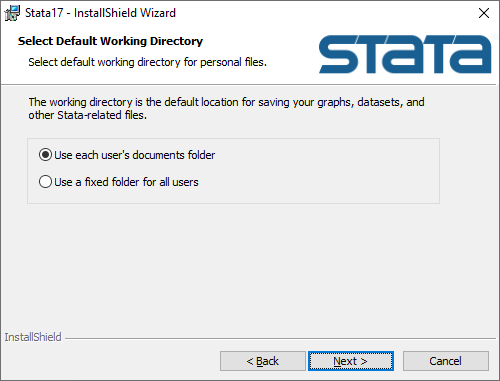
- For the “Select Default Working Directory” window click Next. The default location for saving your graphs and datasets will be located in your Documents folder.
- Click Next then click Install. After the installation is complete, there will be no shortcut created for Stata that will appear on the Desktop. Search for Stata on your computer and then it will ask you to initialize the license. Enter your full name to the right of the “Name” field. Type 1050 Massachusetts Ave, Cambridge, MA 02138 to the right of “Organization”. The serial number, code, and authorization will be in the license pdf that would have been sent to you via SendSecure. After you enter that information, UNCHECK Register Stata online, and now you should be all set to use Stata!
For support, please email it-support@nber.org.